
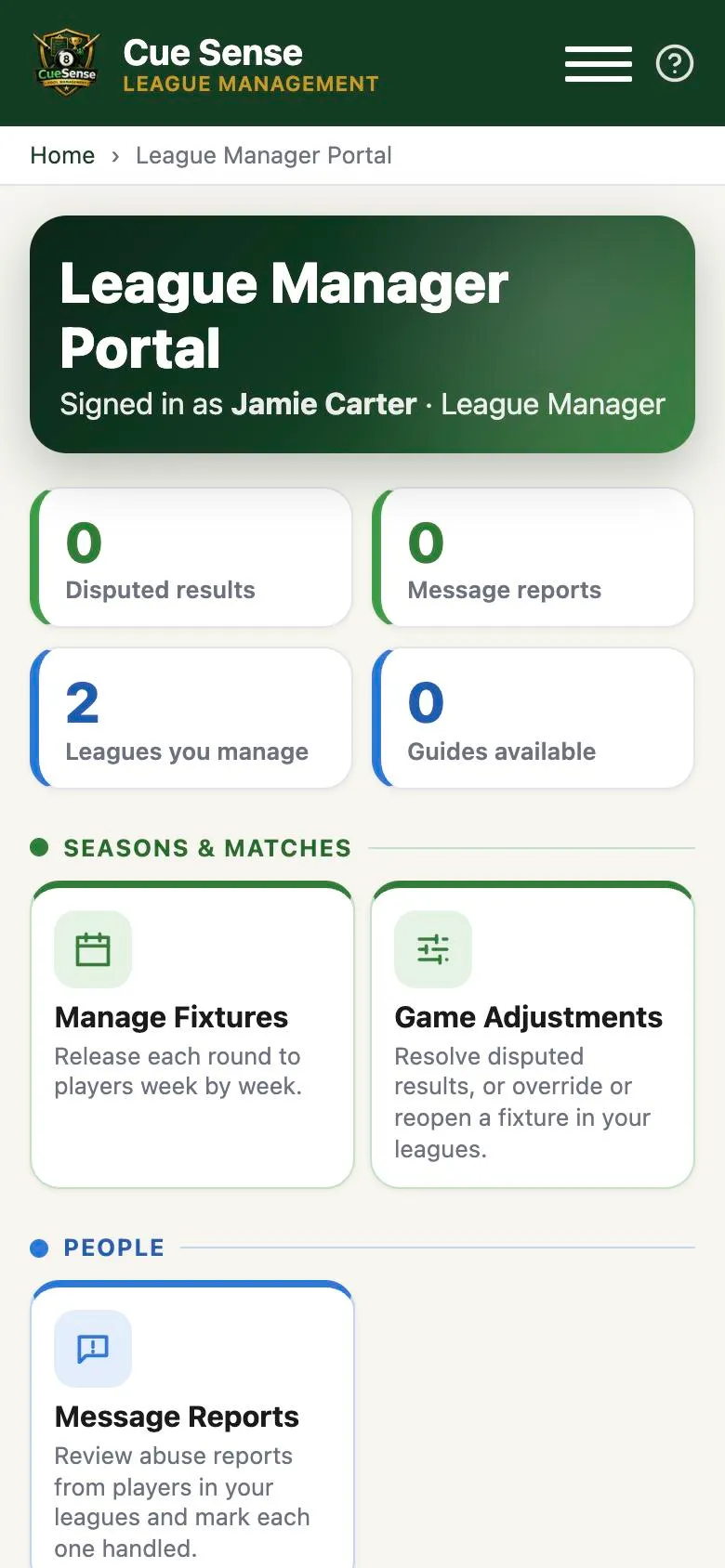
The League Manager Portal is where you run your leagues day to day. Open it from the menu in the app (League Manager Portal). You’ll see anything that needs your attention at the top — disputed results and message reports — with your tools and leagues underneath.
1. Create the league
A Cue Sense admin creates the league and assigns you as its League Manager. Each league has:
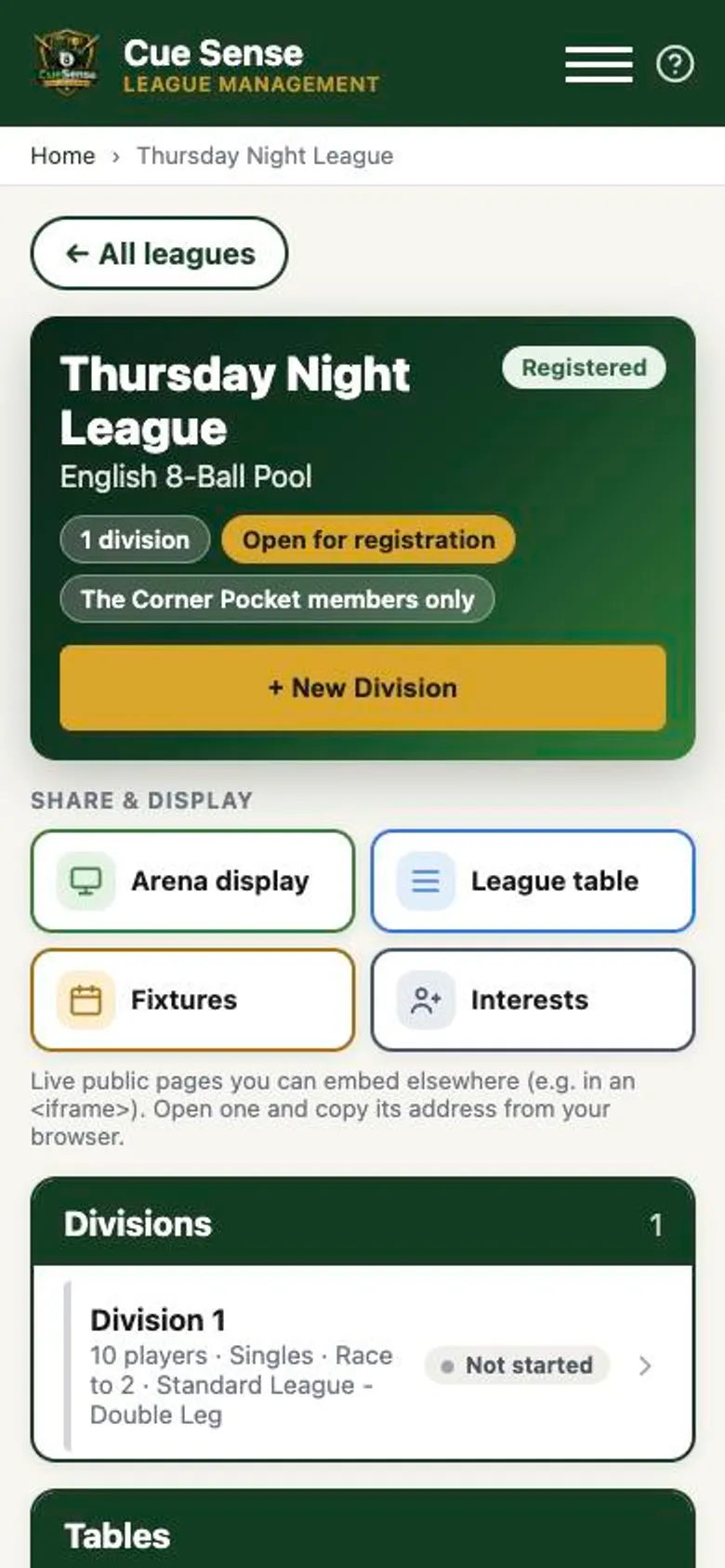
- Registration. Open the league for interest registration, with optional opening and closing dates.
- Restrict to a venue. Only members registered at that venue can see the league and register. You can still add anyone yourself.
- Payment wall. Set an entry fee and a payment window. A player’s fee has to be confirmed (or waived) before they can be added to a division.
2. Add divisions
Tap + New Division. Each division chooses its own:
- Entry type. Singles, teams (team v team, made up of legs) or doubles and triples pairings.
- Format. Standard league (single or double leg), single-elimination knockout, double-elimination knockout (pre-configured or adaptive), Free Play or Killer.
- Match length. Race to a number of frames, or best of an odd number of frames.
3. Fill the divisions
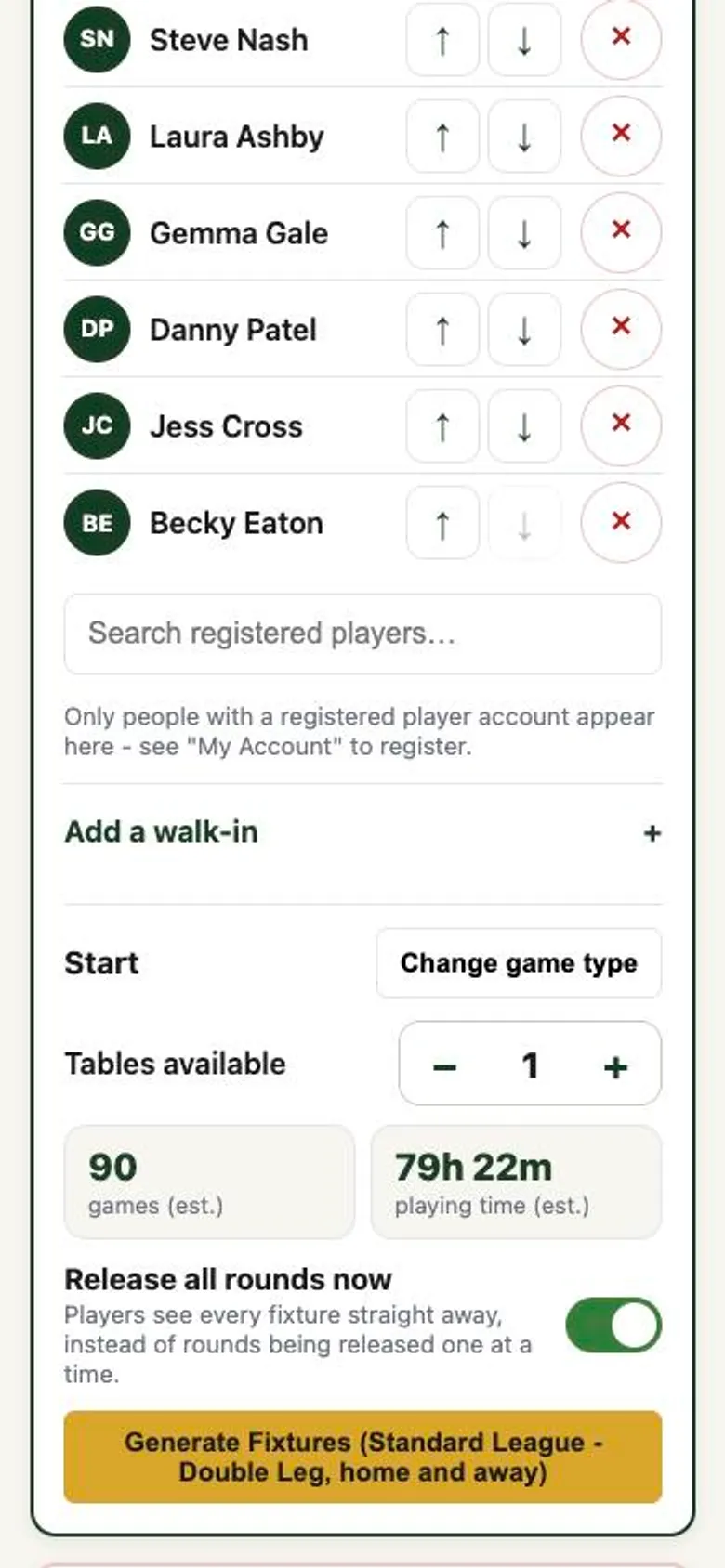
Open Interests to see everyone who has registered. Tick players and add them to a division in one go. You can also add registered players one at a time, or Add a walk-in. Use the arrows to set seeding for knockouts.
For multi-stage events, Seed from Group Stage pulls the top finishers straight from another division’s standings into a knockout.
4. Generate fixtures
Set how many tables are available and the app estimates the number of games and the playing time. Then tap Generate Fixtures. Rosters lock once fixtures are generated.
Named tables (added under Tables on the league) let you schedule fixtures onto real tables, and they appear on the Arena display.
5. Release rounds week by week
In Manage Fixtures, pick a league and division and release each round when you’re ready. Players only see the rounds you’ve released. To publish everything at once, use Release all rounds now.
6. Match night
Players score frame by frame and both sides confirm the result. Tables, brackets and stats update straight away. See How to score a match in Cue Sense.
7. Sort out problems in Game Adjustments
Game Adjustments lists every disputed result and no-show claim in your leagues. Open one to correct the score, reopen the match for scoring or confirm it. You can also search for a player to fix any other match.
Message Reports shows abuse reports from players’ private messages. Review each one and mark it handled.
8. Changes during the season
- Player dropping out or Temporary cover to swap a player. Only unplayed matches move to the replacement.
- Add a late entrant to a knockout and rebuild the bracket.
- Close early for a division or the whole league that won’t finish.
9. Share it
Under Share & Display every league has live public pages that need no login:
- Arena display for a TV in the venue: today’s matches on each table.
- League table, fixtures, interests and brackets to embed on your own website.
- A live scoreboard for any match, for streaming.
When a division’s last match is completed, its champion goes onto the Roll of Honour automatically. To run an order of merit across several divisions, create a Tour. It adds up each player’s standings points from every division in it.